1
Choose the recognition language
Open Screenshot OCR in Freemore OCR and select the model that matches the text. Choose the reading-order setting before capturing.
Open a picture or a region of the screen, then copy the words out of it.
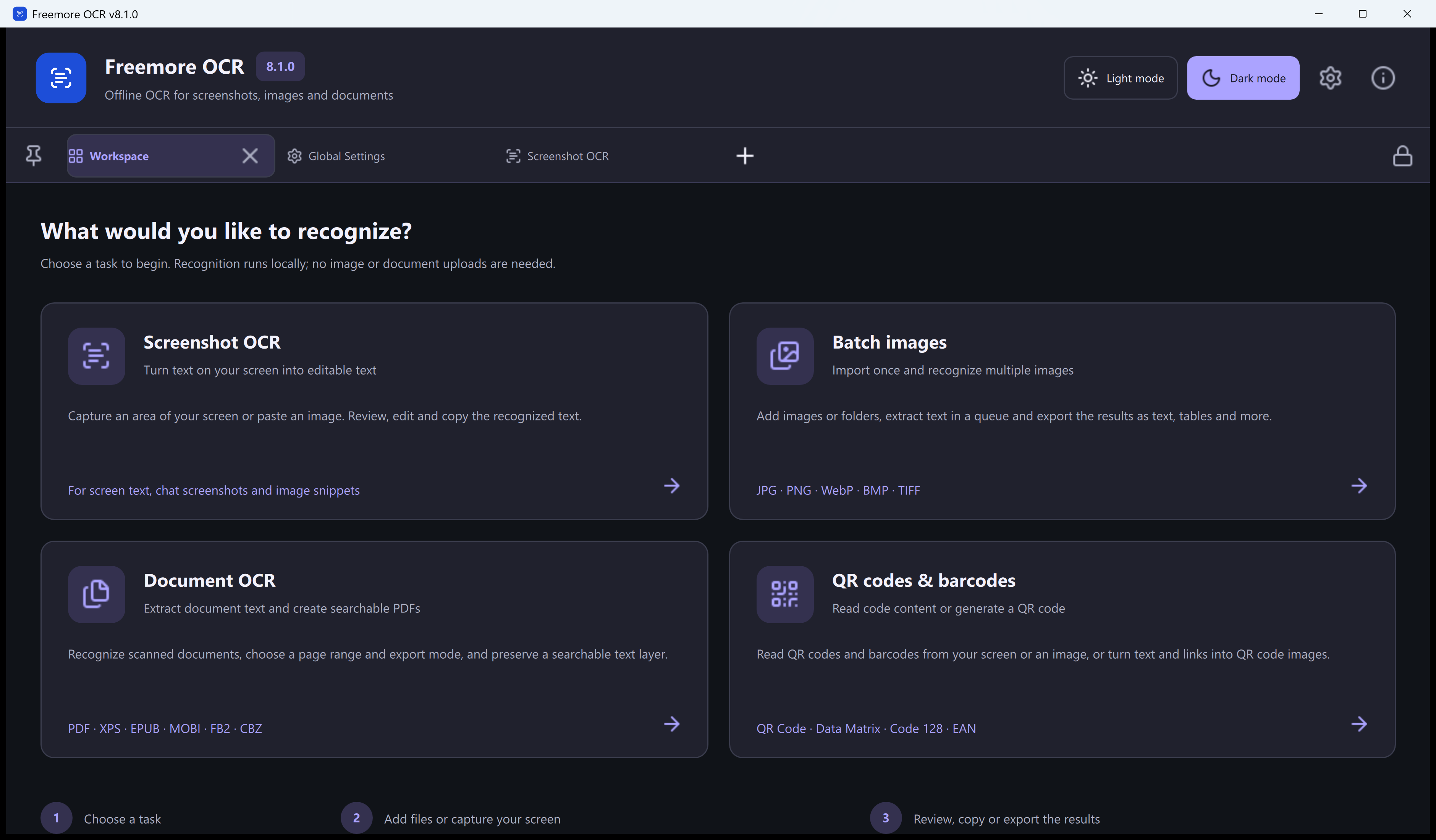
Open Screenshot OCR in Freemore OCR and select the model that matches the text. Choose the reading-order setting before capturing.
Press Win+Alt+C and select a screen region, or use Win+Alt+V for a clipboard image. Recognition starts after capture or paste.
Compare the recognized text with the source image, correct any errors and copy the text you need. Names, numbers and punctuation are worth checking carefully.
For JPG, PNG, WebP, BMP or TIFF files, open Batch Images and choose the model before starting. Add files or folders, choose a destination, and export TXT, plain text, Markdown, CSV or JSON Lines.
Windows 10 or 11 · 64-bit · Version 8.1.0