FreemoreSoft

Freemore OCR for Windows

Free OCR software for images, screenshots and PDFs

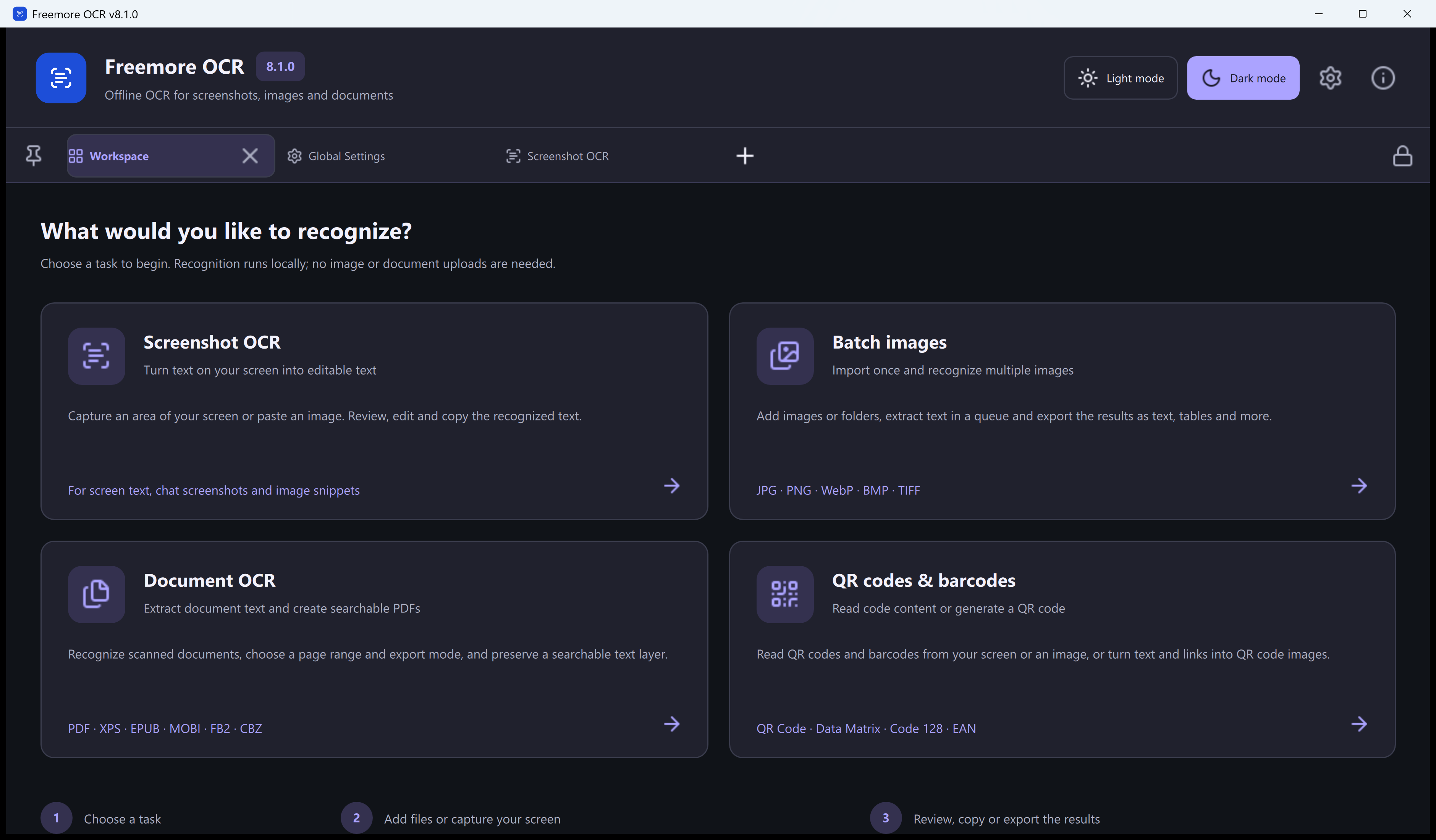
Copy text from a screenshot, recognize scanned images or make a PDF searchable. Freemore OCR works locally on your Windows PC, with separate workspaces for captures, image batches and documents.

  • Recognize text locally, without uploading your documents
  • Copy editable text or export a batch of results
  • Create searchable PDFs with a selectable text layer

Windows 10 or 11 · 64-bit · Version 8.1.0 · Signed Setup

Freemore OCR in dark theme

Turn printed words in a picture into usable text

OCR, or optical character recognition, turns printed words in an image into text you can select, edit and copy. Use it for screenshots, scans and documents when you need reusable words or a searchable PDF.

Copy text from your screen

Screenshot OCR: copy text from your screen

Capture text from a window, image or displayed document. Recognition starts after capture; compare the result with the image before copying.

Source
Selected screen region or clipboard image
Review
Image preview, recognized text boxes and editable results
Reuse the text
Copy words into the document where you need them
  1. Choose the recognition language

    Open Screenshot OCR and select the model that matches your text.

  2. Capture a region or paste an image

    Press Win+Alt+C and select a screen area. Use Win+Alt+V for an image already on the clipboard.

  3. Review and copy the text

    Compare image and text side by side. Correct the results panel, then copy selected words or the complete result.

Work through a folder of scans

Convert images to text, one folder at a time

Queue multiple images and review each result beside its source. Follow per-file progress, then save combined results or separate text files.

Image inputs
JPG/JPEG, JFIF, PNG, WebP, BMP and TIFF
Folder handling
Optional inclusion of subfolders
Exports
TXT, plain text, Markdown, CSV and JSON Lines
  1. Choose the language and layout

    Open Batch Images. Select the OCR model and reading order for your pages.

  2. Add images or a folder

    Add or drag in files and folders. Include subfolders if needed and remove unwanted entries.

  3. Choose exports and destination

    Select one or more formats. Save beside the images or elsewhere, with source-name or date-based filenames.

  4. Run and review the batch

    Start recognition and inspect completed or failed items. Pause, resume or stop when needed.

Make scanned documents searchable

Turn scanned PDFs into searchable PDFs

Recognize scans or extract existing document text. Preview pages, choose a range for each file and select the output you need.

Document inputs
PDF, XPS, EPUB, MOBI, FB2 and CBZ
Page controls
Individual ranges and page previews
PDF exports
Searchable layered PDF or text-only PDF
  1. Choose the recognition language

    Open Batch Documents and select the model for your pages.

  2. Add documents and select pages

    Add files or folders, preview pages and set each document's range. Enter the password if required.

  3. Choose extraction mode and output

    Select a mode below. Choose searchable layered PDF to retain the appearance and add text, or select a text export.

  4. Process and check

    Choose the destination and start. Review the text, then check searching and copying in a saved PDF.

Choose an output for the way you will use the text

Image batches and document batches share several text exports. Markdown belongs to Batch Images; the two PDF choices belong to Batch Documents.

ExportAvailable fromBest for
TXT and plain-text .p.txtImages and documentsSave recognized text with source/page labels, or omit those labels with plain text. Image batches can also save one TXT per image.
Markdown (.md)ImagesKeep image and text content together in a Markdown file.
CSVImages and documentsOpen source/page information and recognized content in a spreadsheet application.
JSON Lines (.jsonl)Images and documentsUse structured recognition results in scripts or other processing workflows.
Searchable layered PDFDocumentsRetain the page appearance and add a transparent text layer for search and copying.
Text-only PDFDocumentsCreate a PDF containing recognized text without the source page images.

Choose the OCR model that matches your source

Six OCR models are included. Select one before capturing or starting a batch. Recognition models and interface-language choices are separate settings.

  • Simplified Chinese
  • English
  • Traditional Chinese
  • Japanese
  • Korean
  • Russian / Cyrillic

More ways to work with text and codes

Browse OCR guides

Adjust reading order and exclude repeated areas

Choose single-column or multi-column handling, paragraph breaks or preserved indentation. Draw ignore areas to exclude repeated headers, footers or other regions from results without changing the source.

Read and create QR codes

Capture or paste a QR code or supported barcode to read its contents. Create QR codes from text or links, adjust dimensions and margins, then copy or save.

Connect local scripts through the API

Submit images or documents through the local HTTP interface and retrieve text or structured results. It normally listens on localhost, with configurable host and port settings.

Get more useful text from each scan

Start with a clear image

Use a sharp source with the text fully inside the capture. Keep small print readable instead of shrinking the page before recognition.

Match the reading order

Choose a model and layout for your source. Multi-column pages and indented text may need different settings to retain a useful reading sequence.

Review before reusing the result

Check names, numbers and punctuation against the source. Correct errors, then copy or export work you need to retain beyond the current Records workspace.

Freemore OCR 8.1.0

Download free OCR software for Windows

Download the signed Freemore OCR 8.1.0 Setup for 64-bit Windows 10 or Windows 11. The package includes the OCR engine and recognition models.

  • Windows 10 or Windows 11, 64-bit
  • OCR engine and all six recognition models included
  • No separate .NET installation needed

Free OCR questions, answered

Is Freemore OCR free to use?

Yes. The OCR features described here are free to use. Download the Windows application to recognize screenshots, process image batches and create searchable PDFs on your PC.

Does Freemore OCR work offline?

Yes. Recognition runs locally with the included engine and models. Screenshots and documents need no upload to an online OCR service.

Can I make a scanned PDF searchable?

Yes. Select searchable layered PDF in Batch Documents. It retains the page appearance and adds recognized text for searching and copying.

Should I use OCR on a PDF with selectable text?

Use Original text only to extract existing text. Choose Mixed OCR/original text when you also need to recognize image-based content.

Can I export to Word or Excel?

There is no direct DOCX or XLSX export. Copy text into your document editor or open CSV in a spreadsheet application.

What is the difference between text-only PDF and Original text only?

Text-only PDF saves text without page images. Original text only reads existing document text without applying image OCR.

Can I process images in subfolders?

Yes. Enable subfolders in Batch Images and review the queue. Choose combined exports or one TXT for each image.

Can I open a password-protected PDF?

Enter the correct password for a supported encrypted document, then preview its pages and choose the range to process.

Which Windows versions can run it?

Freemore OCR 8.1.0 is for 64-bit Windows 10 and Windows 11. Python, Qt, the OCR engine and all six model selections are included; a separate .NET installation is not required.

Can OCR read handwriting and complex tables?

Use clear printed text for the most dependable results. Handwriting, blurred characters and complex page layouts can introduce errors. Review the output; CSV export stores recognition results rather than recreating the original spreadsheet layout.

Turn your next screenshot, scan or PDF into text you can use
Download free software

Windows 10 or 11 · 64-bit · Version 8.1.0