1
Add the MP3 files
Open Freemore MP3 Joiner and drop the songs onto the list, or use Add files. Add folder brings in the audio in that one folder. It does not open the folders inside it. You need at least two clips. One merge can hold up to 200.
Add your MP3 files in order, trim the edges you do not want, and merge them into one file.
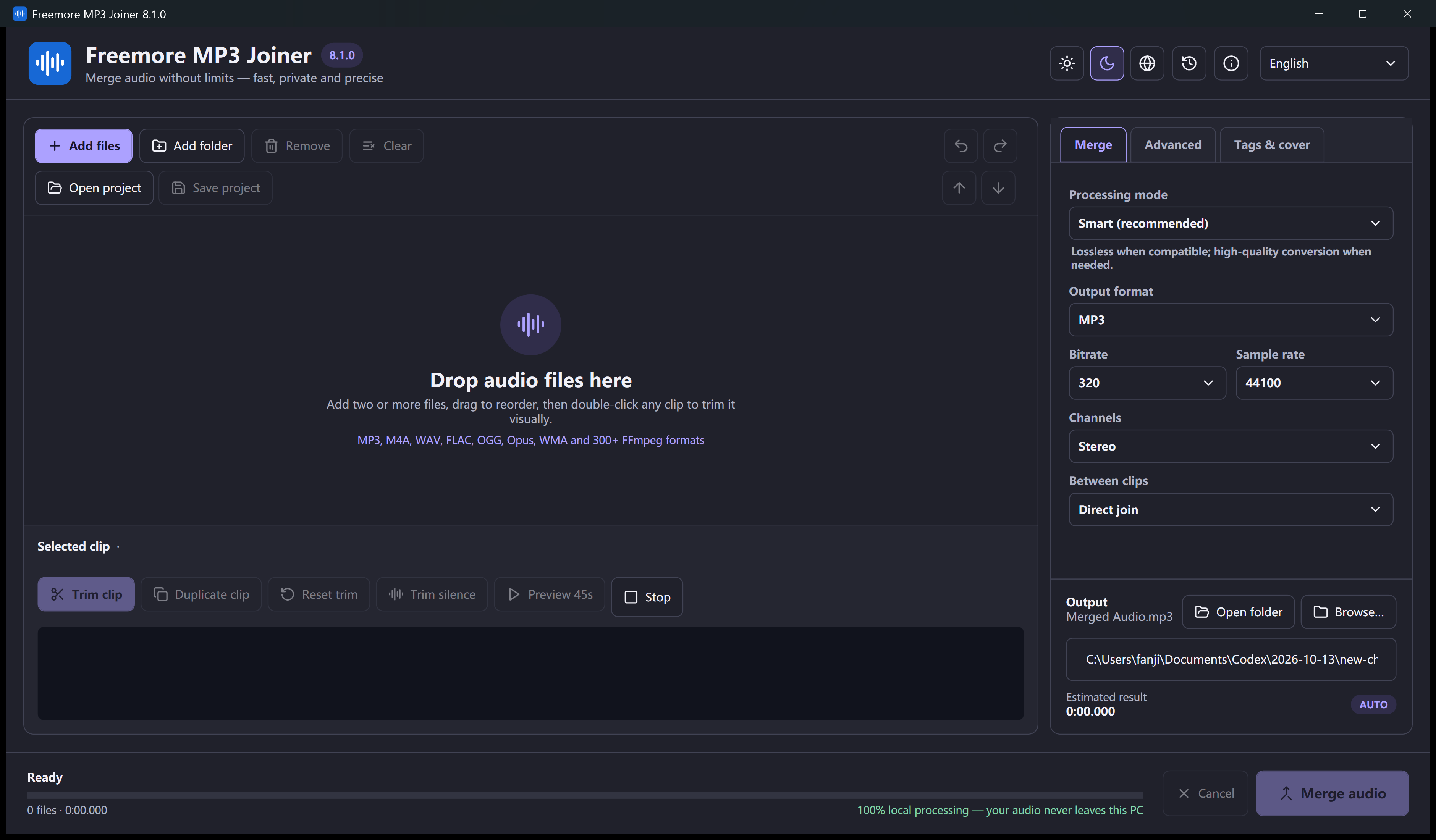
Open Freemore MP3 Joiner and drop the songs onto the list, or use Add files. Add folder brings in the audio in that one folder. It does not open the folders inside it. You need at least two clips. One merge can hold up to 200.
Drag a row up or down until the songs run the way you want to hear them. Remove a file you added by mistake, or clear the list and start again. The files on your disk are not changed.
Select a row, then set the part of that clip you want to keep. Duplicate the row when the same file should play twice, or when you want two different parts of it. Reset the trim if the whole clip should come back.
A direct join starts the next clip as soon as the last one ends. A silence gap can be as long as 30 seconds. A crossfade overlaps them, from 0.1 to 30 seconds, and it has to be shorter than every clip in the list. Trim silence only removes quiet at the start or end of a selection. Quiet in the middle of a song stays.
Set the output format to MP3, then the bitrate, sample rate, and channels. Smart is the usual processing mode: it copies the audio when the clips already match, and encodes when you trimmed, faded, or mixed formats. Lossless Copy refuses the job if the clips do not already agree. Studio always encodes. Choose the folder, start the merge, and listen across each join.
Windows 10 or 11 · 64-bit · Version 8.1.0