How to Convert MP4 to 3GP for an Older Phone
Use a clip that already works on your phone to guide the first conversion, then test a short 3GP export on the phone itself.
Download Freemore Audio Video SuiteWindows installer · Download and setup details
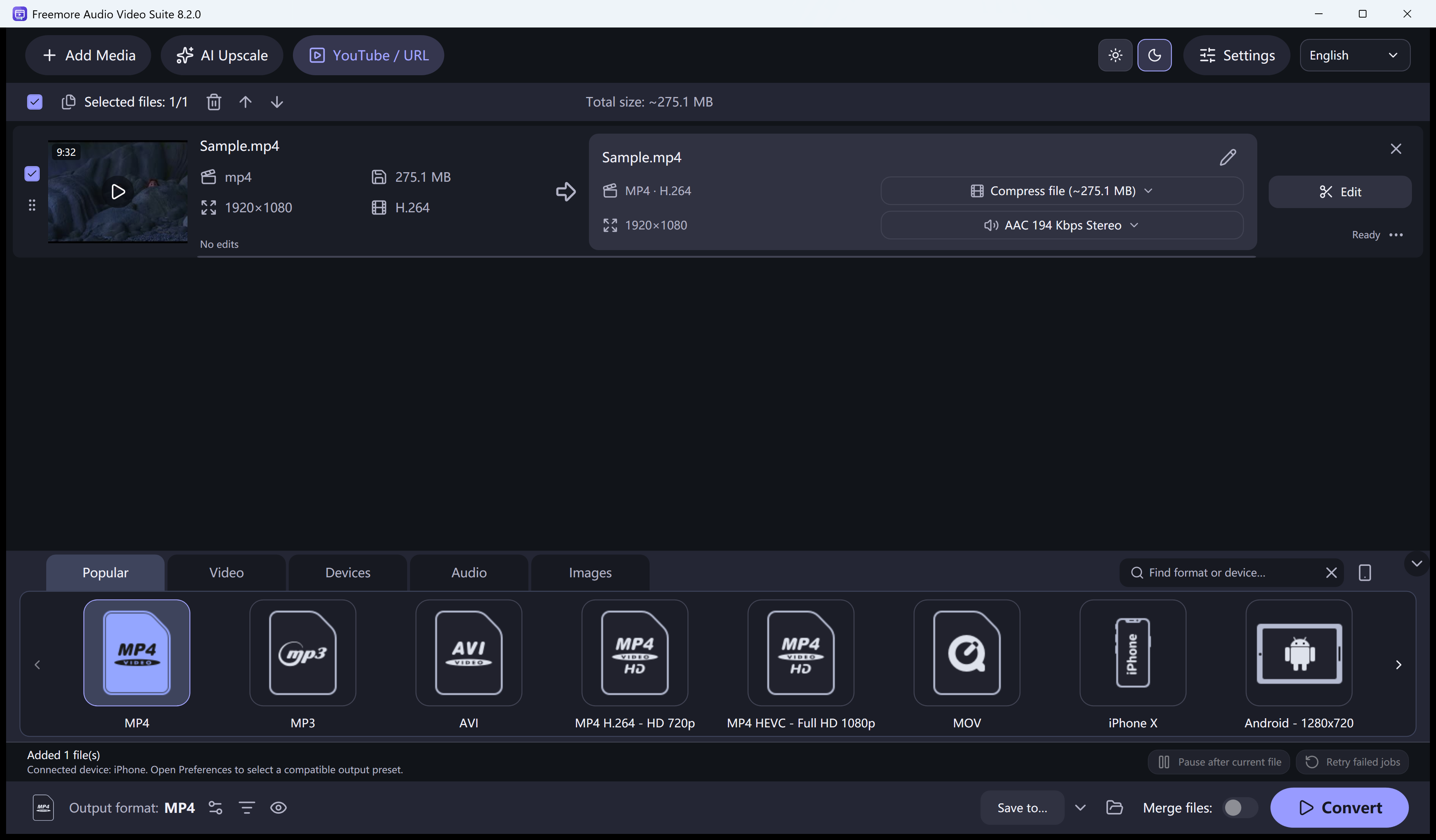
Start with a clip the phone already plays
A feature phone plays its own camera recordings but rejects a clip someone sent as MP4. Use a short original phone recording as your reference.
Match the settings and test a short export
- Keep a known-good recording from the phone. Check its container, frame size, video encoding and audio encoding where those details are available.
- Load a short MP4 in Freemore Audio Video Suite, choose 3GP and start with settings your phone already plays wherever the available options match.
- Copy the exported sample to the same folder where the phone plays its own recordings. Start playback on the phone and listen for sound before making the longer output.
If the phone still refuses the file
If it refuses the file, change one setting at a time. The .3gp extension identifies the container. The phone also has to support the video and audio inside it.